Unlock the Full Potential of Apple Wallet: 10 Hacks You Need to Know
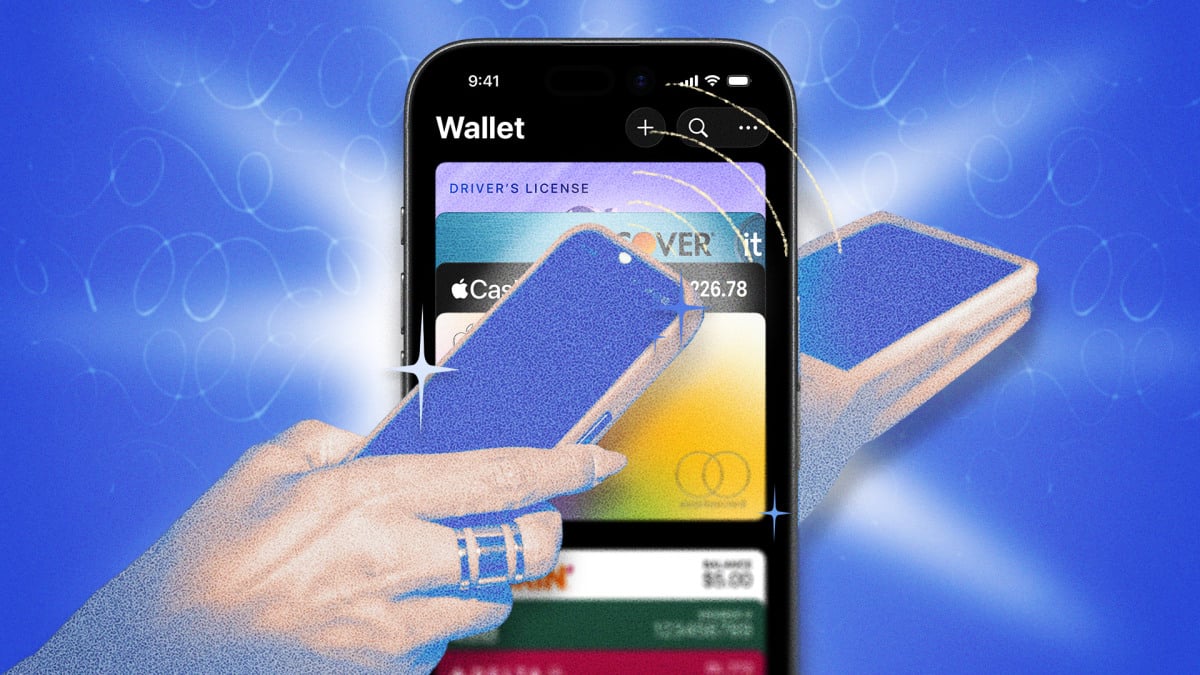
For those who are deeply integrated into the Apple ecosystem, Apple Wallet is a powerful tool for making digital payments, storing tickets and passes, and transferring cash. However, there are also a handful of hidden features that can help you get the most out of Wallet and make your life easier. In this article, we will explore 10 hacks that every Apple Wallet user should know to unlock the full potential of this versatile app.
Add Cards to Express Mode to Use Them Even When Your Phone is Dead
One of the most useful features of Apple Wallet is Express Mode. This feature allows you to use transit cards, payment cards specifically for transit, keys, student IDs, and other compatible passes without waking your device or authenticating with Face ID, Touch ID, or your passcode. These passes are also available on a battery reserve, so you can still use them even if your iPhone is dead. This means you can still get home on public transit or unlock your door without needing to charge your device first.
To add a card to Express Mode, select the card, pass, or key in Apple Wallet, tap the three dots, and then tap Card Details. From there, tap Express Transit Settings or Express Mode. Note that Express Mode would allow anyone with physical access to your device to use your passes since authentication isn’t required. Therefore, it’s essential to keep your keys secured with biometrics and reserve Express Mode for transit cards, which you’re more likely to need to tap and go.
Generate a Virtual Card Number to Use Apple Cash Where Apple Pay Isn’t Available
Apple Pay is increasingly accepted as a payment option online, in apps, and at brick-and-mortar merchants. However, there are still plenty of places that won’t accept a direct Apple Pay transaction. If you’re shopping online or making a payment over the phone, you can generate a virtual card number for Apple Cash, which allows you to spend those funds directly and also keeps your real card information hidden. When you select your Apple Cash card in Wallet, tap the card icon at the top of the screen and authenticate to get the number. The three-digit security code will change each time you use AutoFill or access your card in Wallet.
This feature is particularly useful for online shopping or making payments over the phone. It allows you to use your Apple Cash funds without having to share your real card information with the merchant. Additionally, it provides an extra layer of security and protection for your financial information.
Use Shortcuts to Automatically Select a Card Based on Location
If you use different payment cards for different transaction types—one card offers better rewards on groceries while another is good for gas, for example—you can use Apple Wallet to automatically suggest the correct one based on your location. This feature is particularly useful for people who use multiple cards for different transactions. It saves you time and effort by automatically selecting the correct card based on your location.
To set up this feature, go to the Library tab in the Shortcuts app and tap the ‘+’ button. Type ‘Card’ into the search bar and select Open Card. Then go to Automation, tap ‘+’, select Arrive and add the Location. You can select when to run the automation, then hit Next. For the Action, select Open Card in Wallet, select the pass or card, and confirm.
Use Tap to Cash to Split Bills Instantly Without Needing Contact Information
Many methods of peer-to-peer payment require you to obtain some type of contact information—such as a username, email, or phone number—from the person you’re sending money to or receiving money from. If they’re your friend or you pay them often using a service like Venmo or Cash App, this probably isn’t a hassle. But you could use Apple Wallet’s built-in Tap to Cash, which transfers money instantly between two iPhones or Apple Watches without sharing private contact information.
This feature is particularly useful for people who often send or receive money from friends or family members. It allows you to transfer money instantly without having to share your contact information. Simply have Apple Cash set up in advance, open Wallet, tap your Apple Cash card, and select Send or Request > Tap to Cash. Enter the amount, tap Next, double-click your iPhone side button to confirm, and hold your device up to the other person’s.
Use Wallet to Share Digital Keys with Custom Permissions
Apple Wallet can securely store a few different types of digital keys: home, apartment/condo, hotel room, car, and scooter. Your device will automatically pull up the correct key when you’re in range of the lock, and you can also enable Express Mode so you don’t need to authenticate with Face ID or your passcode. Car and scooter keys can then be shared, so other drivers can lock, unlock, and start your vehicle without needing a physical key.
You can also set custom permissions, such as restricting the recipient’s ability to reshare and, depending on the car manufacturer, setting limits on things like speed and radio volume. When you select your car key in Wallet and tap Share, set the available permissions, add an optional activation code, and choose your recipient. You can share via Messages, Mail, WhatsApp, and AirDrop, to name a few.
Enable Apple Pay and Mail Order Tracking to See All of Your Shipments in Wallet
In addition to showing you recent transactions on each of your cards, Wallet serves as a hub for tracking orders on purchases made with Apple Pay. You just have to enable this in Settings > Wallet & Apple Pay > Order Tracking. (Also in beta is an Apple Intelligence and Siri feature that can update orders in Wallet with information pulled from Mail—this is a separate toggle in Settings.) Back in Wallet, tap the three dots > Orders.
Add Your Driver’s License to Wallet to Verify Your Identity with Your iPhone
Apple has continued to expand its digital ID options within Wallet so you can add your driver’s license and/or state ID as well as your passport to the app and use your iPhone—instead of the physical documents—to verify your identity. Practically speaking, this is most useful when flying, as digital IDs are accepted at TSA checkpoints. (It’s worth noting that only a small subset of states have compatibility with Apple Wallet.) You may also be able to use your ID from Wallet at some entertainment venues, as well for in-app verifications.
To add your driver’s license to Wallet, tap the ‘+’ sign in Wallet, select Driver’s License and ID Cards, choose the ID you want to add, and follow the prompts. This feature is particularly useful for people who frequently travel or attend events that require identification. It allows you to use your iPhone as a secure and convenient way to verify your identity.
Enable Payments on Mac to Authenticate Apple Pay from Your iPhone
While Apple Pay is relatively seamless for online purchases if you’re using a Mac and Safari, there are other cases where you can’t authenticate payment simply by using Touch ID—for example, you have your laptop docked and closed or you’re using an older device without built-in biometrics. On a non-Safari browser, you also have to scan a generated code with your iPhone to complete an Apple Pay purchase. While you can’t get around the latter, you can enable Allow Payments on Mac for the former, which then lets you authenticate from your iPhone or Apple Watch if it’s not possible to do on desktop.
To enable this feature, go to Settings > Wallet & Apple Pay > Allow Payments on Mac. This feature is particularly useful for people who use their Macs for online shopping or making payments. It allows you to use Apple Pay without having to authenticate with Touch ID on your Mac.
Convert Physical Cards into Apple Wallet Passes
While many types of passes—library cards, event tickets, membership passes, etc.—already integrate seamlessly with Apple Wallet, some businesses may still hand out physical cards. If you want to digitize, you can use a third-party app like MakePass or Pass2U Wallet to scan and add unsupported cards to Apple Wallet. iOS 27 is coming out with a Create a Pass feature that will do this natively via Apple Intelligence.
Audit Your Connected Merchants to Remove Unused Subscriptions
If you use Apple Pay for recurring charges, such as subscriptions and monthly bills, you can view a list of merchants right in Wallet. Tap the three dots in the upper right corner and select Preauthorized Payments. You can also revoke payment tokens, though Apple notes that this won’t cancel your subscription and associated payment—rather, it’ll simply communicate to the merchant not to charge the Apple Pay method again. To actually cancel or change your payment method, you’ll have to go directly to the merchant.
This feature is particularly useful for people who use Apple Pay for recurring charges. It allows you to view and manage your connected merchants in one place and remove any unused subscriptions. Simply tap the three dots in the upper right corner and select Preauthorized Payments. From there, you can revoke payment tokens and cancel or change your payment method directly with the merchant.